
Main Account Holder and Contact Address
Use Main Account Holders and Main Contact Addresses to create the legal name and physical address records used for Government IPND and Emergency Services checks.
These records are created separately. When you buy or update a phone number, choose the correct Main Account Holder and Main Contact Address together on that number.
Example used in this guide
- Main Account Holder: John Smith
- Main Contact Address: 1097 Old Princes Highway, Engadine NSW 2233
This is example data only. You must use your legal name and real physical service address when updating your account.
Add a Main Account Holder
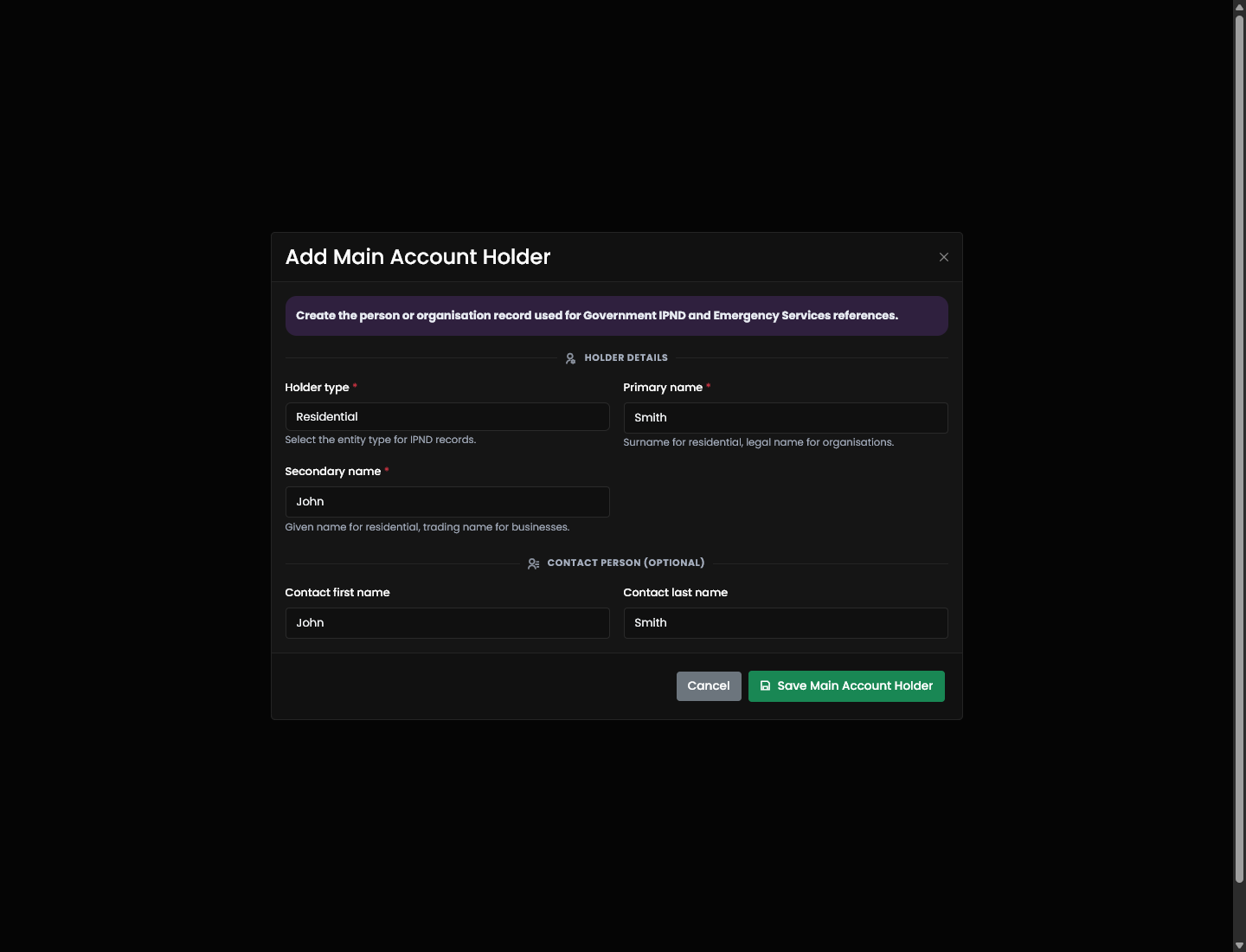
- Sign in to the Crazytel MyAccount portal.
- Open Number Management > Main Account Holders.
- Click Add Main Account Holder.
- Choose the Holder type:
- Residential
- Business
- Government
- Charity
- Non-profit
- Enter the legal name:
- For a residential holder, enter the surname in Primary name and the given name in Secondary name.
- For an organisation, enter the organisation name in Primary name and the trading name in Secondary name if required.
- Optional: enter Contact first name and Contact last name for the authorised contact person.
- Click Save Main Account Holder.
- Confirm the holder appears in the Account Holders table.
Add a Main Contact Address
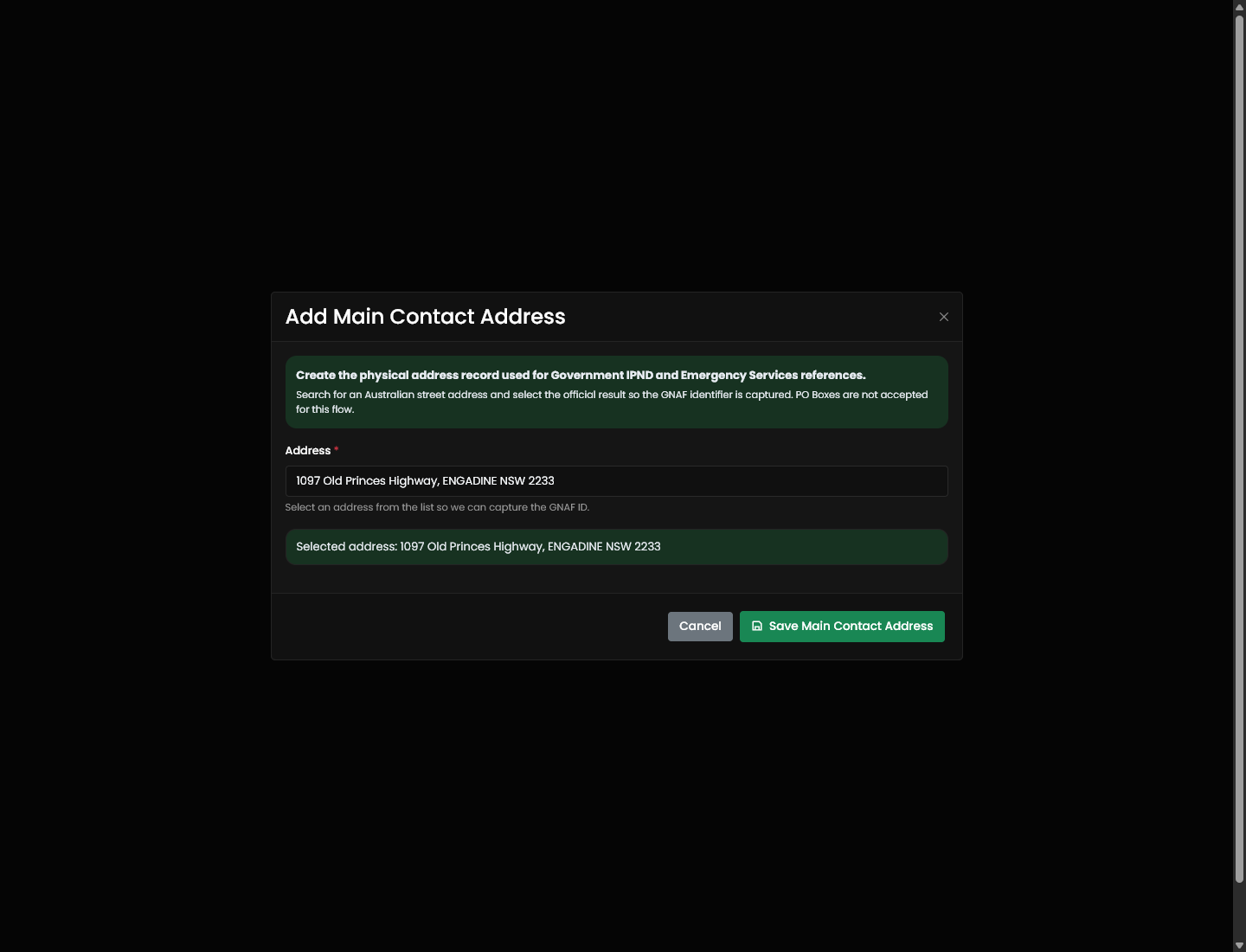
- Open Number Management > Main Contact Addresses.
- Click Add Main Contact Address.
- Start typing the physical Australian street address in Address.
- Select the official result from the address lookup list.
- Confirm the portal shows Selected address below the field.
- Click Save Main Contact Address.
- Confirm the address appears in the contact-address table.
Address lookup tips
- Use a physical Australian street address, not a PO Box, parcel locker, or mail-only address.
- Search by street number, street name, suburb, state, and postcode.
- If a business name does not work, remove the business name and search for the street address only.
- If a unit or suite address does not work, search for the base street address and confirm the correct physical site.
- If the address is a new development, recently renamed road, or new tenancy, it may not be available in the lookup yet.
Invalid GNAF ID errors
An invalid GNAF ID error means the address saved in the form does not include a valid G-NAF identifier. G-NAF is the Geocoded National Address File, the national geocoded address database used to identify physical Australian addresses.
This usually happens when:
- The address was typed but no lookup result was selected.
- The selected result did not include a GNAF ID.
- The customer used a PO Box, parcel locker, postal counter, or mail-only delivery address.
- The address is known to Australia Post but is not represented as a physical GNAF address.
- The address is new, uses an alias, or differs from the official street/locality wording.
Postal validity and GNAF validity are not the same thing. A postal address can be good enough for mail delivery, while still not being a valid geocoded physical address for IPND and Emergency Services records. G-NAF focuses on physical addresses, geocodes, land parcels, properties, assets, and official locality/street information. Australia Post postcodes and delivery labels are designed for mail processing.
What to do
- Clear the field and search again.
- Select an address from the lookup suggestions instead of typing the full address manually.
- Remove business names, recipient names, delivery instructions, and postal-only wording.
- Try the official street address from a lease, rates notice, utility bill, or government source.
- Try the base address without unit or level details if the unit cannot be found.
- Do not use PO Boxes, parcel lockers, or post-office counters.
- If the address should exist but still fails, send the exact address and a screenshot of the error to support.