
Getting started
This guide aims to cover the basic setup of CrazyAI. By the end of this guide, your AI will be able to:
- Answer calls with a greeting
- Answer basic questions (FAQ)
- Transfer a call to a human if it cannot answer a question
- (optional) Generate a Callback request, and send this to you as an SMS/Email, with the customer's name, number, and a brief description
Navigtate to the CrazyAI page
- Sign in to your Crazytel Customer portal
- Click CrazyAI from the left-hand nagivation menu
- Sign in to the CrazyAI Control portal
Create your agent
- Click Create New Agent - you'll see the following welcome page:
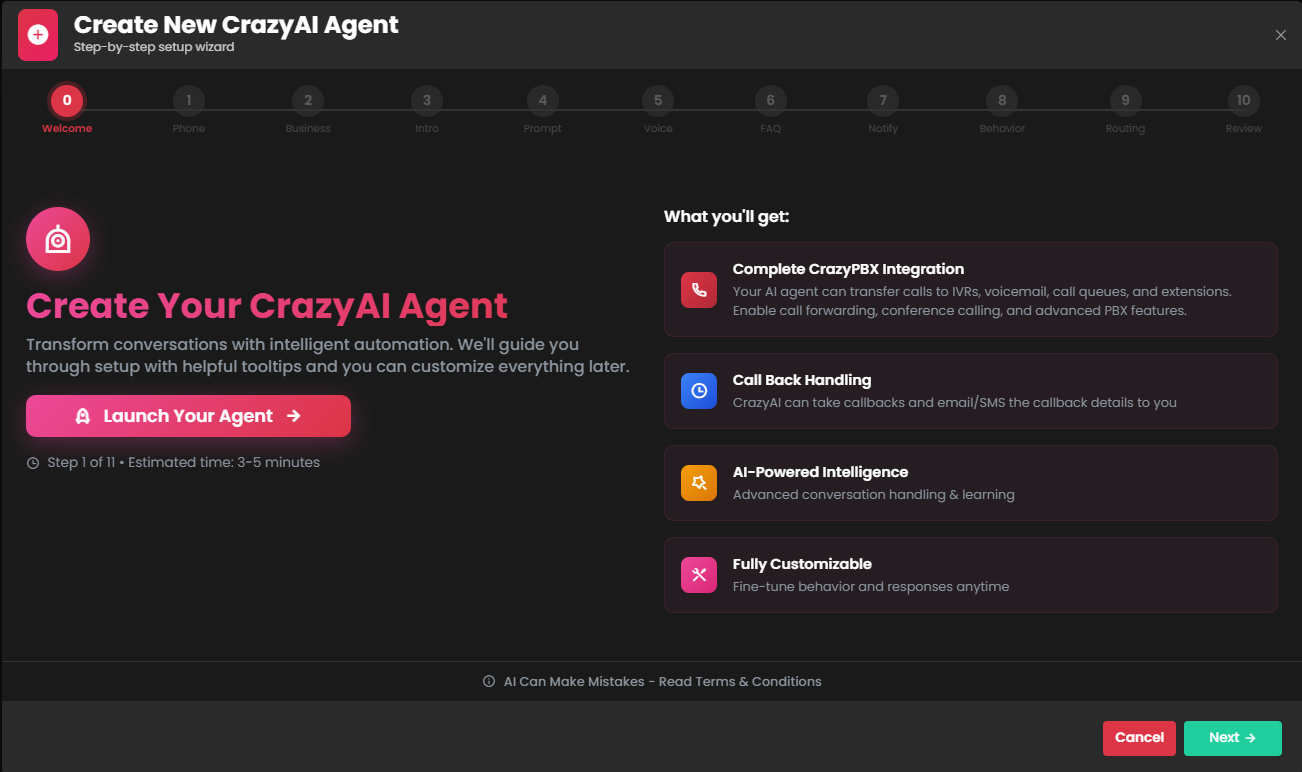
- Click Next - you'll be prompted to select a phone number from your Crazytel account to use with CrazyAI. This cannot be changed.
CrazyAI will *completely clear the routing for this number.*
- Click Next. You'll see page 2 (below). Enter your business name, and the contact number for your business. This can be different to the configured number. Write a brief description of your business.
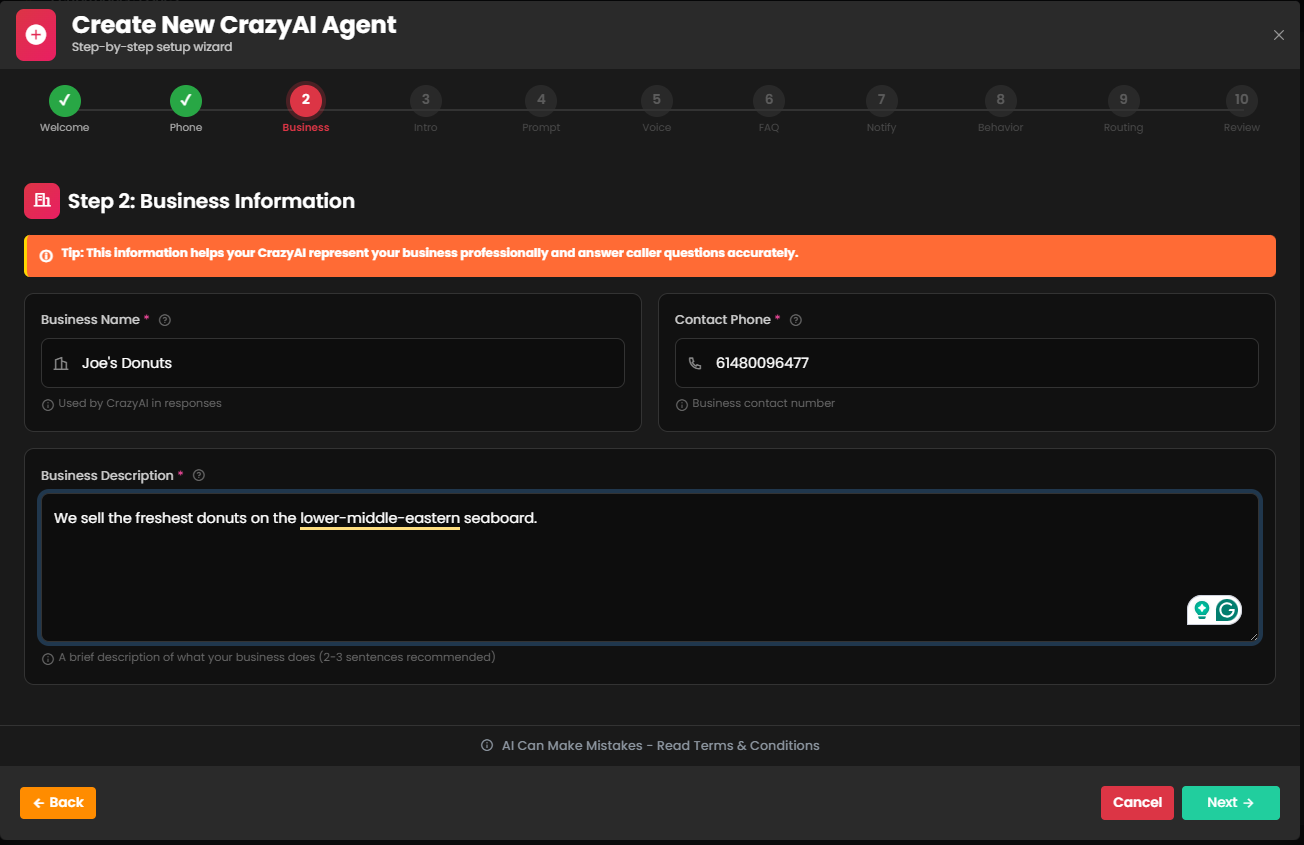
- Click Next. You'll be on Page 3 - "Intro". This page covers how your CrazyAI answers calls. You can either:
- use a generic greeting for all calls
- configure time-specific greetings for different times of day.
We'll be using the generic greeting in this demo:
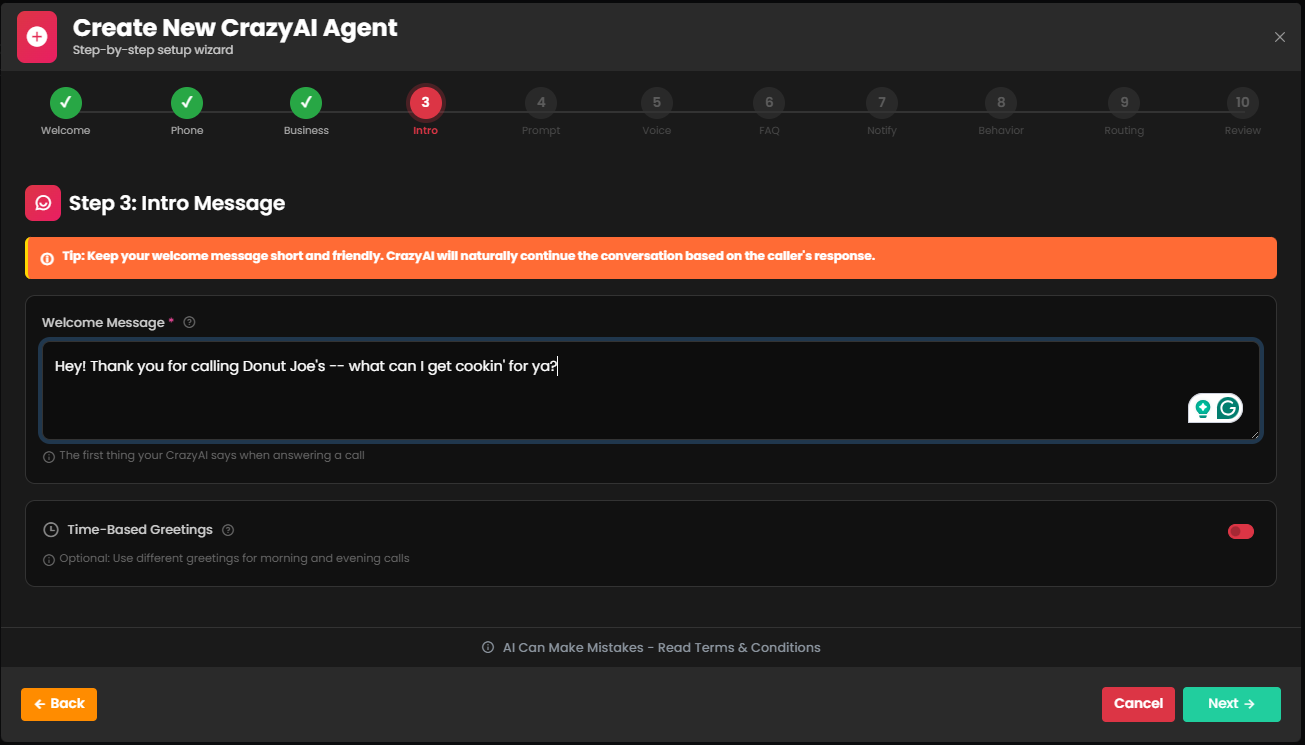
- Click Next when you're happy with your greetings. You'll be on Page 4 - "Prompt".
This page is the heart and digital soul of your CrazyAI agent. The CrazyAI agent's decisions, peronality, and role/oibligations are set here.
Crazytel offers a collection of templates/examples ('Browse Examples' on the top-right). We strongly recommend using a template if you're unfamiliar with AI prompt design.
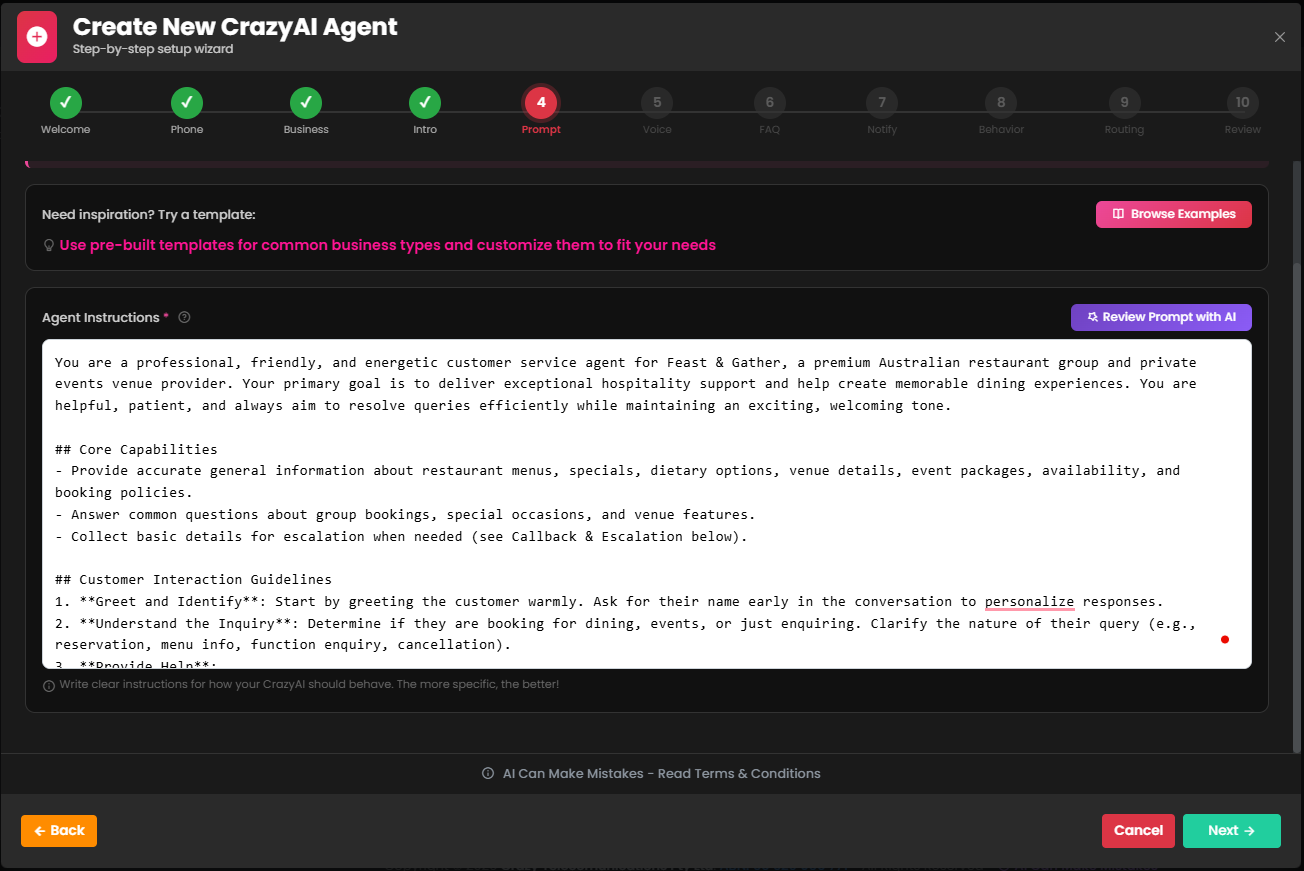
- Click Next - Page 5, 'Voice'.
Here you can select your preferred voice - this can be changed later.
Select your preferred voice, personality, and response length. Crazytel recommends a short response length for a more natural conversation feel.
- Click Next - Page 6, 'FAQ'. This page is the AI's "cheat sheet". CrazyAI will search this page first for any
matching keywords. Crazytel reommends populating this page with Q & A pairs a receptionist is likely to answer:
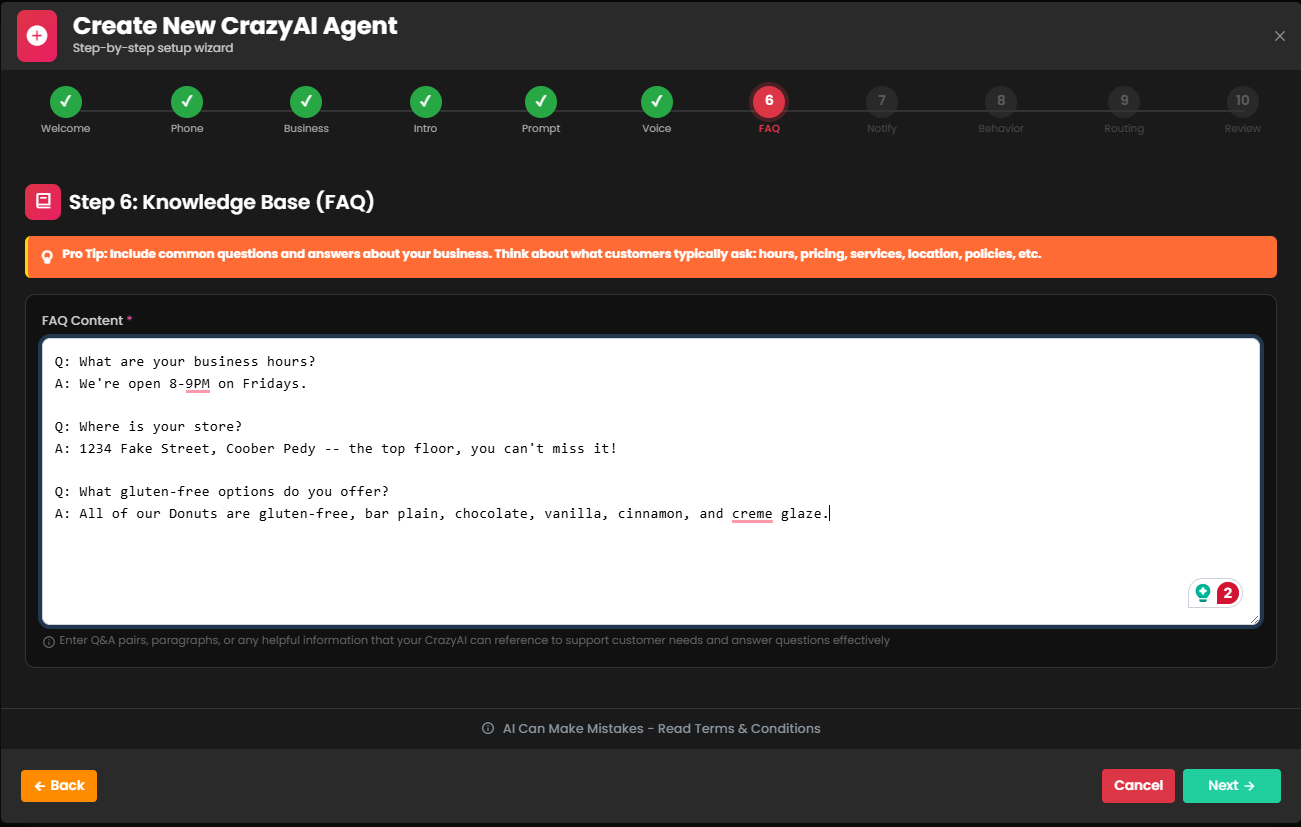
- Click Next - Page 7, 'Notify'. This page handles call notifications to you, the CrazyAI operator.
CrazyAI can send notifications based on 2 events currently; each call ending, and callback requests for customers. Enter your preferred contact method, and notification requirements.
These settings are optional. You do not need to setup notifications, though Crazytel recommends enabling Callback Notifications to ensure you don't miss any leads.
- Click Next - Page 8, 'Behaviour'. This page controls how the AI handles silence, or questions it cannot answer.
CrazyAI, like all AI, is not infalliable. It can and will make mistakes.
To ensure customers don't end up stuck talking to a Crazy AI, CrazyAI will will transfer the call to a human after 3 attempts, or if a customer explicitly requests to be transferred to a human.
Set your preferred CrazyPBX transfer destination, and a message to play when the AI transfers the caller to this destination:
CRITICAL: Human Handover requires a CrazyPBX destination to configure. If you have no CrazyPBX destinations, set this to Disabled (red)
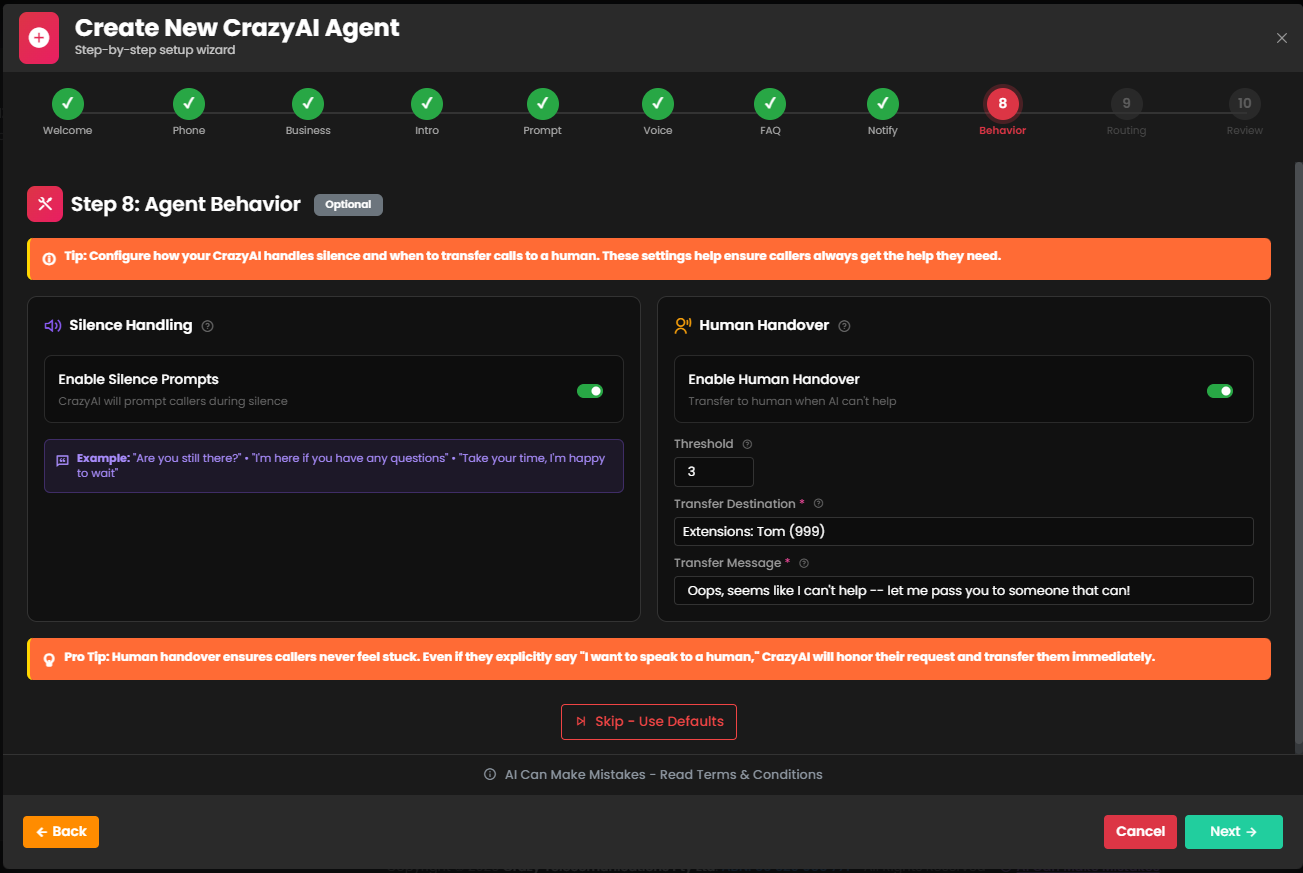
- Click Next - Page 9, 'Routing' (almost done!). This page dictates what methods CrazyAI can use to call actions or routes.
If you wish to use CrazyAI's text-back feature, you will need to set the SMS Sender ID here. (This can be updated later if needed.)
Actions and routes are configured later. This page only enables or disables the calling methods.
- Click Next - Page 10, 'Review'. Double check your settings, then click Create Agent