
Call Records
Use Call Detail Records (CDR) to review call, SMS, fax, data, and billing rows for the account. Customers can filter records, check summary totals, inspect individual rows, and export a CSV.
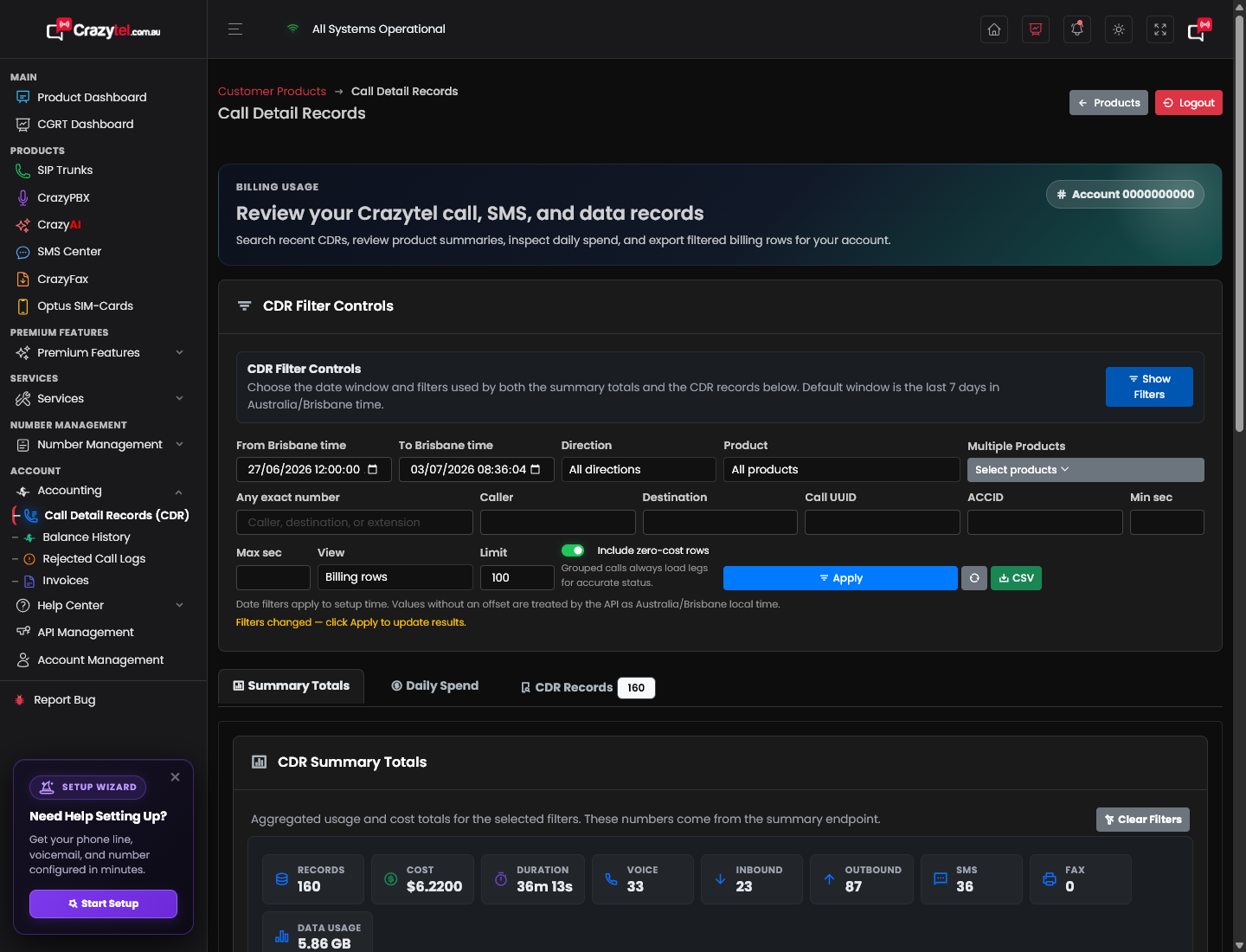
How to use the CDR
- Sign in to the Crazytel MyAccount portal.
- Open Accounting > Call Detail Records (CDR).
- Click Show Filters.
- Choose the date range using From Brisbane time and To Brisbane time.
- Filter by Direction if you only want inbound or outbound records.
- Filter by Product, or use Multiple Products to select more than one product type.
- Use Any exact number, Caller, Destination, Call UUID, or ACCID when you need to narrow the search.
- Choose Grouped calls or Billing rows under View.
- Set Limit if you need more or fewer rows.
- Leave Include zero-cost rows enabled if you want to see free or included usage.
- Click Apply.
What else is here?
- Summary Totals: Total records, cost, duration, voice, inbound, outbound, SMS, fax, and data usage for the selected filters.
- Daily Spend: Usage and cost grouped by day.
- CDR Records: Row-level records for each call, SMS, fax, data session, or billing item.
- CSV / Export CSV: Downloads the filtered results for offline review.
- Refresh: Reloads the latest results using the current filters.
- Clear Filters: Resets the current CDR filters.
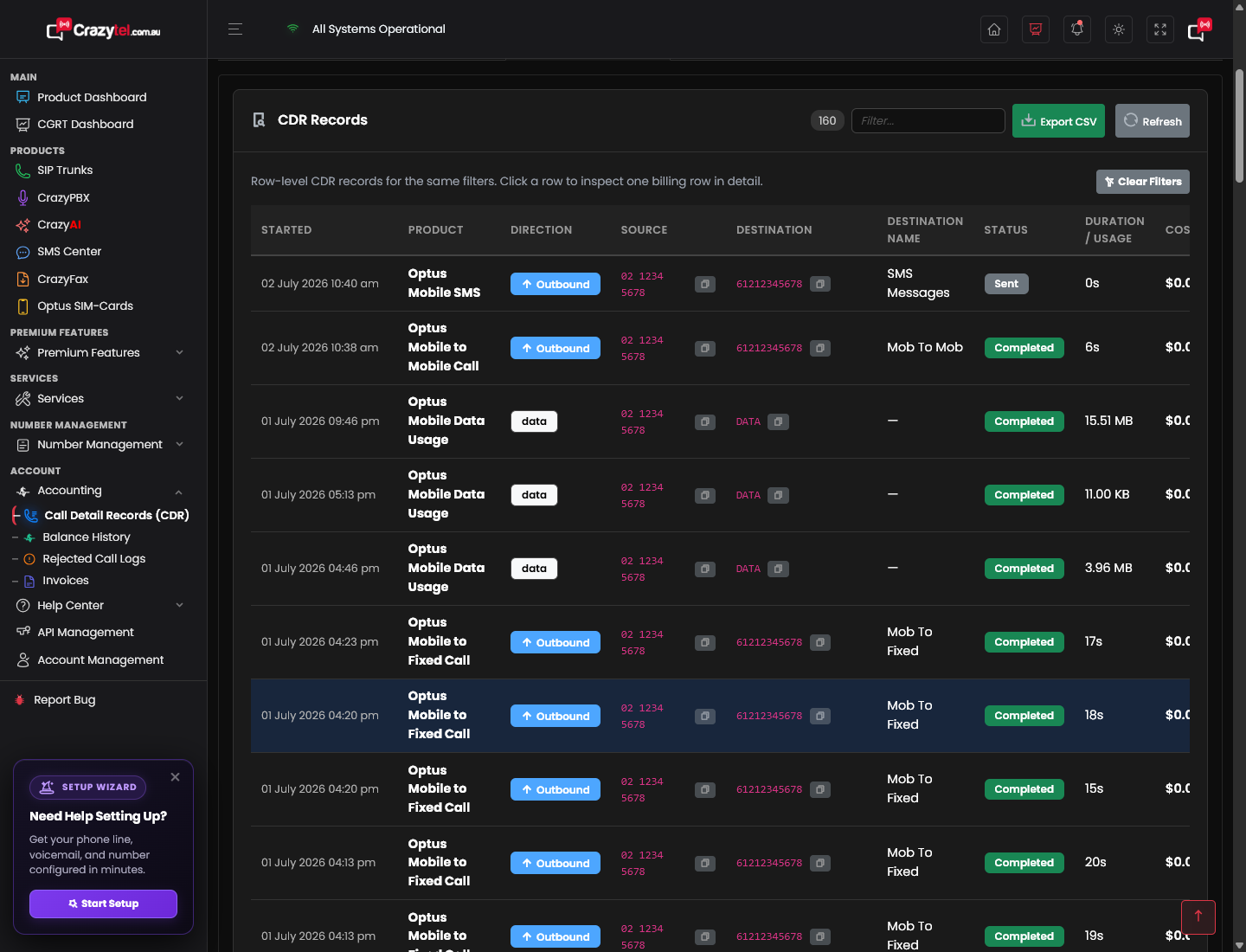
(some sensifive information has been obfuscated in the above screenshot)
CDR record fields
- Started: When the usage record started.
- Product: The product or service that created the record.
- Direction: Inbound, outbound, or data.
- Source: The calling number, sender, extension, or service source.
- Destination: The called number, receiver, or destination value.
- Destination Name: The destination category or friendly name.
- Status: The result, such as completed or sent.
- Duration / Usage: Call duration, SMS count, data usage, or billing quantity.
- Cost: The billed cost for that row.