
How to Forward Calls
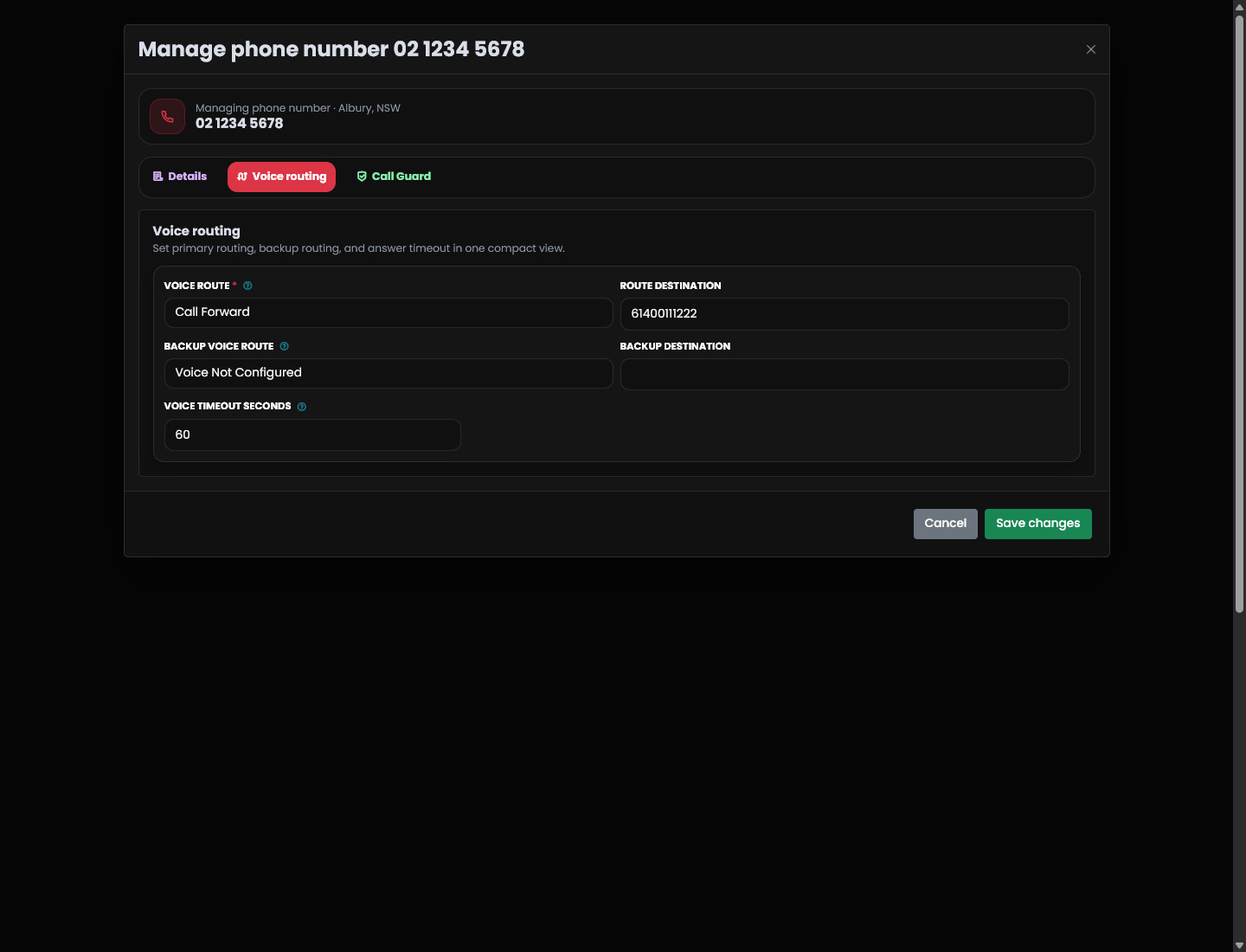
Use Manage Phone Numbers to send inbound calls for a number to an external phone number. The forwarding destination is controlled from the number's Voice routing tab.
Before you start
Requirements:
- A phone number with Crazytel on your account
- Call forwarding enabled (Account Management > Account Settings > Call Forwarding)
Have the destination number ready in international format. For Australian numbers, remove the leading 0 and add 61, such as 61212345678 for a landline or 61400111222 for a mobile. For international numbers, prefix 0011 and enter the rest of the country code, such as 001118009359935 (Chase Bank America).
How to call forward, step by step
- Sign in to the Crazytel MyAccount portal.
- Open Number Management > Manage Phone Numbers.
- Find the phone number you want to forward.
- Click Manage next to that number.
- Open the Voice routing tab.
- Set Voice route to Call Forward.
- Enter the forwarding number in Route destination - remember to use the formatting from above.
- Optional: choose a Backup voice route if calls should fail over somewhere else (IE, Voicemail).
- Optional: enter a Backup destination for the backup route.
- Set Voice timeout seconds if the primary route should ring for a specific time before failover.
- Click Save changes.
- Place a test call to confirm the forwarding works.
Route options
- Call Forward: Forwards calls to the destination number.
- Call Forward using DID as Caller ID: Forwards calls while presenting the Crazytel DID as the outbound caller ID where supported.
- Voice Not Configured: Leaves the number without an active voice destination.
Important
Save changes updates live routing for the number. Check the destination number carefully before saving.